EthicalAds Client
This is the client library used to add an ad placement from EthicalAds to your site. To get started, you will need to first become a publisher, and then you can configure your site.
Usage
There are two pieces required to add an ad placement to your site. You will need
to create an empty <div> element where you would like to place a new ad
placement, and you will need to include the client library.
To start, add the following in your site’s <head>:
<script async src="https://media.ethicalads.io/media/client/ethicalads.min.js"></script>
To add the placement on your site, you will need to add an empty <div> with
some added data attributes to configure the ad placement:
<div data-ea-publisher="..." data-ea-type="text"></div>
Ad client playground
You can play around with an example placement in our ethical ad client playground on JSBin.
Configuration
The following data attributes are supported on the ad placement element:
data-ea-publisher(Required) The EthicalAds publisher id for your account.
data-ea-typeThe ad placement type. This value can be either
imageortext– the default isimage.id(optional)A placement identifier. If you define an
idand enable placements reporting, this will allow you to see reports for eachid.data-ea-priority(optional)A numerical priority for the placement in range [1, 10]. If multiple placements on a page define a priority, the server will choose only one ad to return for the group based on the priority and available inventory. Setting a priority when the page has a single placement will have no effect.
data-ea-style(optional)Use a custom placement style.
data-ea-keywords(optional)A pipe (
|) separated array of keywords for this ad placement. This is page-specific (not publisher-specific) keywords related to where the ad is shown.data-ea-campaign-types(optional)A pipe (
|) separated array of campaign types (“paid”, “publisher-house”, “community”, “house”). This can only further reduce campaign types, not allow ones prohibited for the publisher. This is useful when you want certain users to not get certain types of ads.data-ea-manual(optional)Set to
trueif you want to manually load ads at a specific future time for your app. This is useful if you want to conditionally load advertising for some users but not others or only load advertising when specific actions are performed.data-ea-verbosity(optional)This can be set to “quiet”, “normal” (default), or “verbose”. The client will log more or less depending on this value. The value of “verbose” is useful when setting up the client initially and “normal” is a good value for most publishers.
data-ea-force-ad(optional)This parameter can be used to test the ad client on a specific ad. When used, any impressions will not be counted for billing purposes.
data-ea-force-campaign(optional)This parameter can be used to test the ad client on a specific campaign (group of ads). When used, any impressions will not be counted for billing purposes.
data-ea-placement-bottom(optional)Set to a valid value for the CSS bottom property (eg. ‘40px’) to have a custom position. This must be used with
data-ea-styleto have any effect.
Themes
The following themes are available on all ad placement types:
Raised theme
This is the default theme used if you do not specify a theme.
<div data-ea-publisher="..."></div>
Or you can also explicitly use the theme name:
<div class="raised" data-ea-publisher="..."></div>

Flat theme
<div class="flat" data-ea-publisher="..."></div>
Bordered theme
<div class="bordered" data-ea-publisher="..."></div>
Dark mode
There are also dark variants for all of the themes. The dark variants can be
used with the dark class:
<div class="dark raised" data-ea-publisher="..."></div>
Adaptive color scheme
New in version v2.1.0.
The ad client supports two different methods of having the color scheme adapt between a dark and light mode.
If your site varies the color scheme based on setting a class or data attribute
on the <html> or <body> elements set from a user-facing toggle,
set the adaptive-css class.
This specifically looks for CSS selectors like html.dark, body.dark,
and html[data-theme="dark"] in order to set dark mode.
This method also detects if your site uses a 3-way toggle between light mode, dark mode, and an auto mode
which uses prefers-color-scheme.
<div class="adaptive-css raised" data-ea-publisher="..."></div>
If your site varies based on the user’s system color scheme alone (using prefers-color-scheme),
set the adaptive class:
<div class="adaptive raised" data-ea-publisher="..."></div>
Ad Types
Image placement
The image ad placement type has two variants: horizontal and veritcal. Vertical image placements are the default ad type. To use the horizontal variant, use
Vertical image
<div data-ea-publisher="..." data-ea-type="image"></div>
Horizontal image
This variant can be used with the horizontal theme variant class:
<div class="horizontal" data-ea-publisher="..." data-ea-type="image"></div>
Text placement
Text placements can be defined using data-ea-type="text":
<div data-ea-publisher="..." data-ea-type="text"></div>
Large format placement
New in version 2.4.
Note
Currently, this placement requires approval for your publisher account. This placement is larger than our standard ad placements and is intended to be placed in the footer of your site. This ad is charged to advertisers at a higher rate than our normal rates and earns more money for publishers with extra space. See our blog post on the release and launch.
Large format placements can be defined using data-ea-type="logo-large-v1".
<div data-ea-publisher="..." data-ea-type="logo-large-v1"></div>

The large format placement can be used with a priority to prioritize this placement but fallback to a normal ad if no large format ad is available or if the server is prioritizing smaller format ads. Only one ad will be chosen to be displayed on the page.
<!-- Place a low-priority normal ad in the sidebar if no large format ad is available -->
<div data-ea-publisher="..." data-ea-type="image" data-ea-priority="1"></div>

<!-- ... More page content ... -->

<!-- Large format placement in the footer (if available) -->
<div data-ea-publisher="..." data-ea-type="logo-large-v1" data-ea-priority="10"></div>
Placement style
Placement styles are helpers to help integrate our ads into your site. They are completely optional but they can help you get started with a common pattern without writing custom JavaScript or CSS.
StickyBox
New in version 1.4.
The “StickyBox” style is a floating placement in the lower right corner on very wide screens
(>1300px wide) and a static placement on smaller screens.
By floating, it ensures that the ad is always seen
(and therefore results in billed views that make the publisher money).
On mobile or smaller screens, the ad will just be a static placement wherever the
ad <div> is in the DOM.
Using our StickyBox style:
<div data-ea-publisher="..." data-ea-type="image" data-ea-style="stickybox"></div>
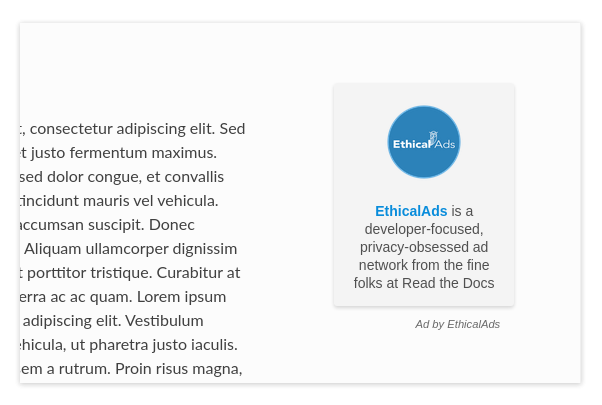
This Stickybox placement as it transitions from ultrawide width where the placement floats to smaller widths where it is inline.
FixedFooter
New in version 1.6.
The “FixedFooter” style is a floating, text-only placement attached to the bottom of the screen. By floating, it ensures that the ad is always seen (resulting in the highest view rate, generating the most revenue).
Using our FixedFooter style:
<!-- Place this div just before the </body> tag -->
<div data-ea-publisher="..." data-ea-type="text" data-ea-style="fixedfooter"></div>
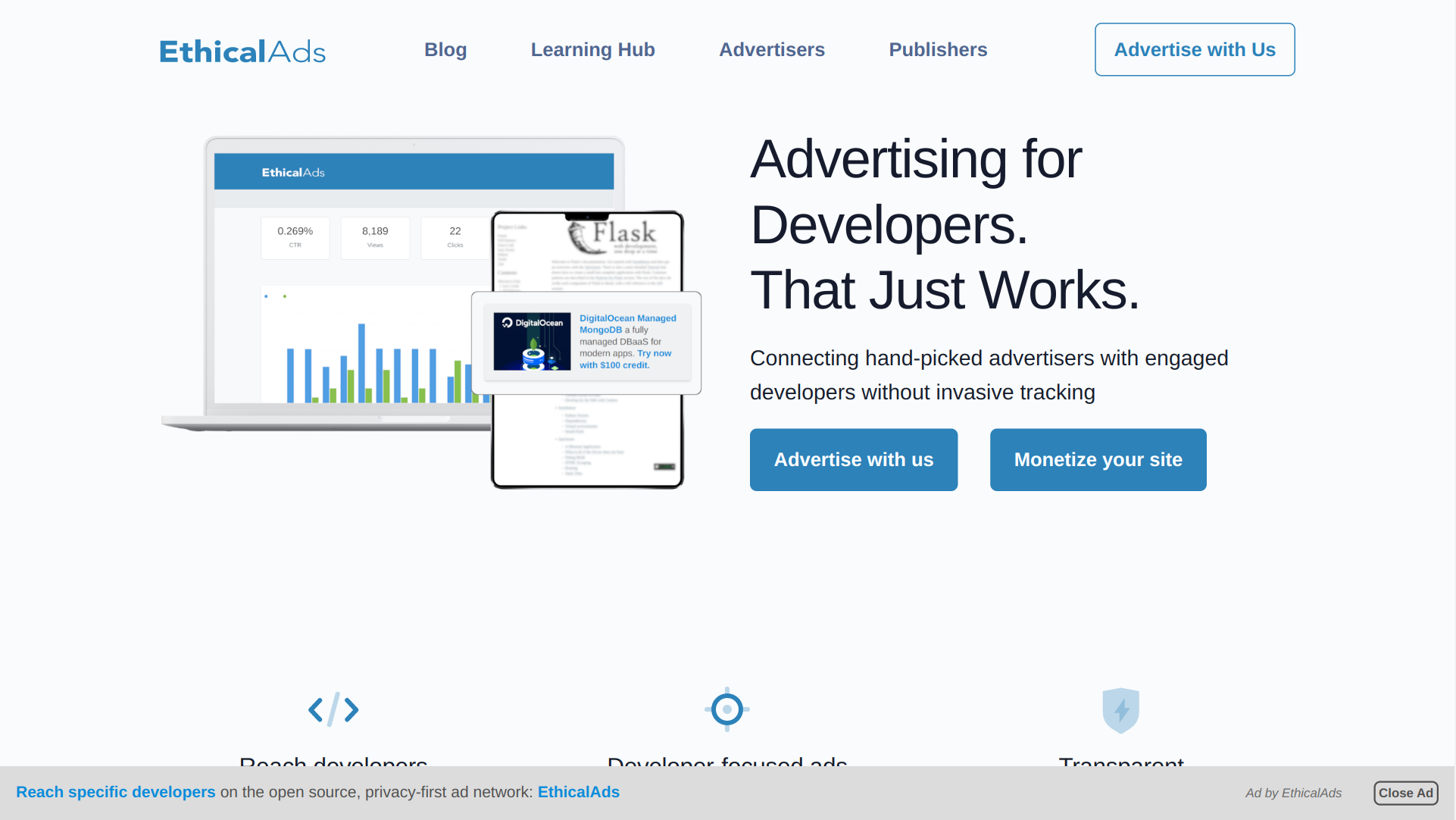
This FixedFooter placement on our homepage
FixedHeader
New in version 1.22.
The “FixedHeader” style is a static, text-only or text+image placement at the top of the screen. Since it’s at the top of the screen, it’s almost always seen (resulting in the highest view rate, generating the most revenue).
There’s a few notes and strong recommendations when using this ad style:
This ad is hidden on mobile. It isn’t well suited for sites with a lot of mobile users.
There are a few breakpoint widths on this ad style and corresponding container sizes. If needed, these are customizable by setting CSS variables (eg.
--ea-container-lg) on the placement div.In your CSS styles, you want a style like [data-ea-style=”fixedheader”] { height: 50px; }. This ensures the space is pre-allocated for the ad slot so the content isn’t pushed down when the ad loads. We set this on the ad client but there can be a flash where the space isn’t allocated before the client loads.
We recommend you set up fallback ads. This ensures something always fills the slot at the top of the screen. You don’t want to have 50px of blank real estate at the top of your page.
Using our FixedHeader style:
<!-- Place this div just after the open <body> tag (top of the document) -->
<!-- You can also use `data-ea-type="text"` for a text-only ad -->
<!-- Set style="height: 50px" to preallocate space for the ad so the page doesn't re-flow -->
<div data-ea-publisher="..." data-ea-type="image" data-ea-style="fixedheader" style="height: 50px"></div>

This FixedHeader placement on our homepage
Ad placement reporting
EthicalAds allows you to track all the different ad placements that you have on your site. This means that if you have an ad on your homepage template, blog listing template, and blog post template you can track them all seperately.
This is enabled by adding an id to the EthicalAds div on your site:
<div data-ea-publisher="..." id="blog-sidebar"></div>
This feature is disabled by default, you can go to Settings > Record placements to enable this feature.
Tip
We recommend that you provide an id for each of your different ad placements.
This will enable you to track the performance of each placement,
and make adjustments that increase your CTR.
Page-specific keywords
Tip
EthicalAds uses a crawler (similar to a search engine) to crawl our publishers’ sites and figure out the appropriate keywords and topics for each page where ads appear. Most publishers won’t need to do anything for EthicalAds to appropriately target the right advertisers to the right pages on publisher sites. This API is mostly for SPAs or other non-traditional sites where our crawler won’t work.
The user agent for our crawler is: EthicalAds Analyzer/$version <server.ethicalads.io>
EthicalAds allows our advertisers to target ads based on the content of pages. This provides value for everyone, giving users more relevent ads while still respecting their privacy.
Publishers can set page-specific keywords dynamically on each page of their site based on the content of the pages. For example, if you have a blog post about Kubernetes, you could set tags of devops and kubernetes.
This is enabled by adding an data-ea-keywords to the EthicalAds div on your site.
They are |-seperated, so you can include multiple for a single page.
<div data-ea-publisher="..." data-ea-keywords="devops|kubernetes"></div>
Single-page apps
Single-page applications (SPAs) rewrite rather than reload the current page to load new content. The goal is to seem more responsive to the site visitor. While ads should not change too frequently, for long lasting pages that transition based on user interaction, it may make sense to rotate the ad.
ethicalads.reload();
Be careful that the ad placement (<div data-ea-publisher="...">)
is not also removed by your screen transition or it will need to be recreated.
Automatic ad rotation
Note
This feature is under active development and the conditions may change in future versions.
The ad client will automatically rotate an ad and show a new ad when appropriate. Currently, the conditions for ad rotation are:
The ad must be visible for 30 seconds or more.
There must be a URL change (anchor link or using the browser history API) OR the tab must come back into focus after being backgrounded or minimized (a visibilitychange event)
Customizing styles
Our ad client includes a number of CSS custom properties (variables) which provide easy access to the values we use and an easy point to override them.
All our custom properties are prefixed with ea- to avoid any conflicts with other CSS.
:root {
    --ea-bgcolor: rgba(0, 0, 0, 0.03);              /* Background color */
    --ea-bgcolor-dark: rgba(255, 255, 255, 0.05);   /* BG color in dark mode */
    --ea-color-domain: #9d9d9d;                     /* Domain element (image ad type) */
    --ea-color-domain-dark: #909090;
    --ea-color-link: rgb(80, 80, 80);               /* Main text color */
    --ea-color-link-active: #373737;
    --ea-color-link-bold: #088cdb;                  /* Bold header & CTA */
    --ea-color-link-bold-dark: #50baf9;
    --ea-color-link-callout: #6a6a6a;               /* "Ads by EthicalAds" */
    --ea-color-link-callout-active: #505050;
    --ea-color-link-callout-dark: #c3c3c3;
    --ea-color-link-callout-dark-active: gainsboro;
    --ea-color-link-dark: rgb(220, 220, 220);       /* Main text color in dark mode */
    --ea-color-link-dark-active: #f6f6f6;
    --ea-container-lg: 960px;                       /* Container sizes for fixedheader ad style */
    --ea-container-md: 720px;
    --ea-container-xl: 1040px;
    --ea-fixedheader-height: 50px;
    --ea-font-family: -apple-system, BlinkMacSystemFont, Segoe UI, Roboto, Helvetica Neue, Arial, Noto Sans, sans-serif, Apple Color Emoji, Segoe UI Emoji, Segoe UI Symbol, Noto Color Emoji;
    --ea-font-size: 14px;
    --ea-image-placement-width: 180px;              /* Ad placement width */
    --ea-image-placement-width-horizontal: 320px;
    --ea-image-width: 120px;                        /* Image display size */
    --ea-image-width-xs: 44px;                      /* Image size in fixedheader style */
    --ea-stylefixed-bgcolor: rgb(220, 220, 220);    /* Background of stickybox, fixedheader, fixedfooter */
    --ea-stylefixed-bgcolor-dark: rgb(80, 80, 80)
}
Customizing execution
It’s possible to extend the ad client, even if you are loading the client in
your browser through a request. After loading the script, there will be an
ethicalads global/window instance that can be used to extend the ad client
interface.
The easiest place to extend is the ethicalads.wait promise instance. This
resolves to an array of placements that were successfully configured – if no
placements were loaded successfully, this will be an empty array.
The ethicalads object needs to be instantiated first. If you aren’t loading
the ad client library asynchronously, you can delay execution by loading your
additional script after loading the ad client.
If you are loading the ad client library asynchronously, you should wait for a document ready event. For example, using jQuery:
$(document).ready(() => {
  ethicalads.wait.then((placements) => {
    console.log('Ads are loaded');
  });
});
Splitting traffic with other ad networks
While our publisher policy states that our ad should be the only ad visible when your page is loaded, you are free to split your traffic with other ad networks or fallback from EthicalAds to another network or vice versa.
You can fallback to Carbon Ads with a snippet like this:
<script src="https://media.ethicalads.io/media/client/ethicalads.min.js"></script>
<script>
ethicalads.wait.then((placements) => {
  // Fallback to Carbon Ads and put the ad in '#ad-container'
  if (!placements.length || placements[0].response.campaign_type !== "paid") {
    let script = document.createElement("script");
    script.src = "//cdn.carbonads.com/carbon.js";  // Note: Don't forget your Carbon ID
    script.type = "text/javascript";
    script.async = true;
    script.id = "_carbonads_js";
    document.getElementById("ad-container").appendChild(script);
  }
});
</script>
Showing content when there isn’t an ad
The easiest way to show alternative content when we do not have a paid ad is to use fallback ads. Fallback ads are ads you as a publisher can create to show only on your own site. You can create and manage fallback ads in your publisher dashboard.
However, if you want to show something custom to users who do not get an ad, you can show backup content with a code snippet like this:
<script src="https://media.ethicalads.io/media/client/ethicalads.min.js"></script>
<script>
ethicalads.wait.then((placements) => {
  if (!placements.length) {
    // No ads were returned by the server
    console.debug('Loading backup content');
    div = document.querySelector('[data-ea-publisher]')
    div.innerHTML = '<p>Check out our first-party ad content.</p>'
  } else {
    console.debug('EthicalAds are loaded');
  }
});
</script>
Warning
You need to have Allow house campaigns disabled in your publisher settings, otherwise we will always return a house ad. Go to Settings > Control advertiser campaign types to disable it. Alternatively, you may request only a paid ad or your own fallback ads by setting data-ea-campaign-types="paid|publisher-house".
Manually loading ads
You can precisely determine when an ad will be loaded by setting the data-ea-manual attribute to true.
This is useful if you want to conditionally show advertising or only show advertising when specific actions occur.
<div data-ea-publisher="..." data-ea-manual="true"></div>
<script>
$(document).ready(() => {
  ethicalads.load();
});
</script>
Becoming a Publisher
Visit EthicalAds to apply to be a publisher.
Developing
This section is for developers of the client itself. Development occurs on GitHub.